
Most of our PDF documents might contain images, interactive forms, tables and other elements that can considerably increase the size of the PDF file. If the size of the PDF document is huge, it becomes bit tough to share and also slows down the PDF when it is opened. Compressing the PDF can reduce its size and also might increase the speed at which the file is opened. This tutorial will help you to compress PDF documents using Adobe Acrobat reader.
How to compress PDF using Acrobat reader?
1. Open the PDF you would like to compress.
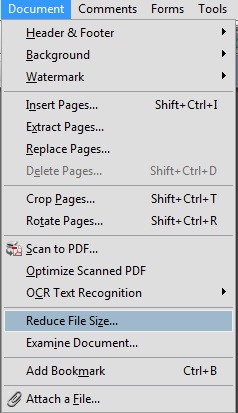
2. Click “Document” from the menu and click “Reduce File Size”

- Reduce File Size – PDF
3. Select the “Acrobat Version Compatibility” from the drop-down menu. This step determines the oldest possible version of Acrobat that can open the PDF.
Note: Setting compatibility to later versions of Acrobat will allow greater reduction in file size.

- Compress PDF with compatibility
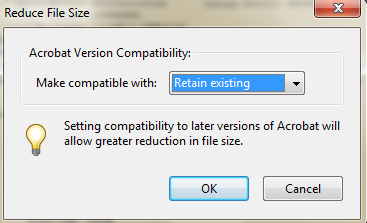
4. Clicking “Ok” will open up a “Save as” dialog box. Save the file with different name and compare the size of the document with its original version.
